Begin with the facts voters need first
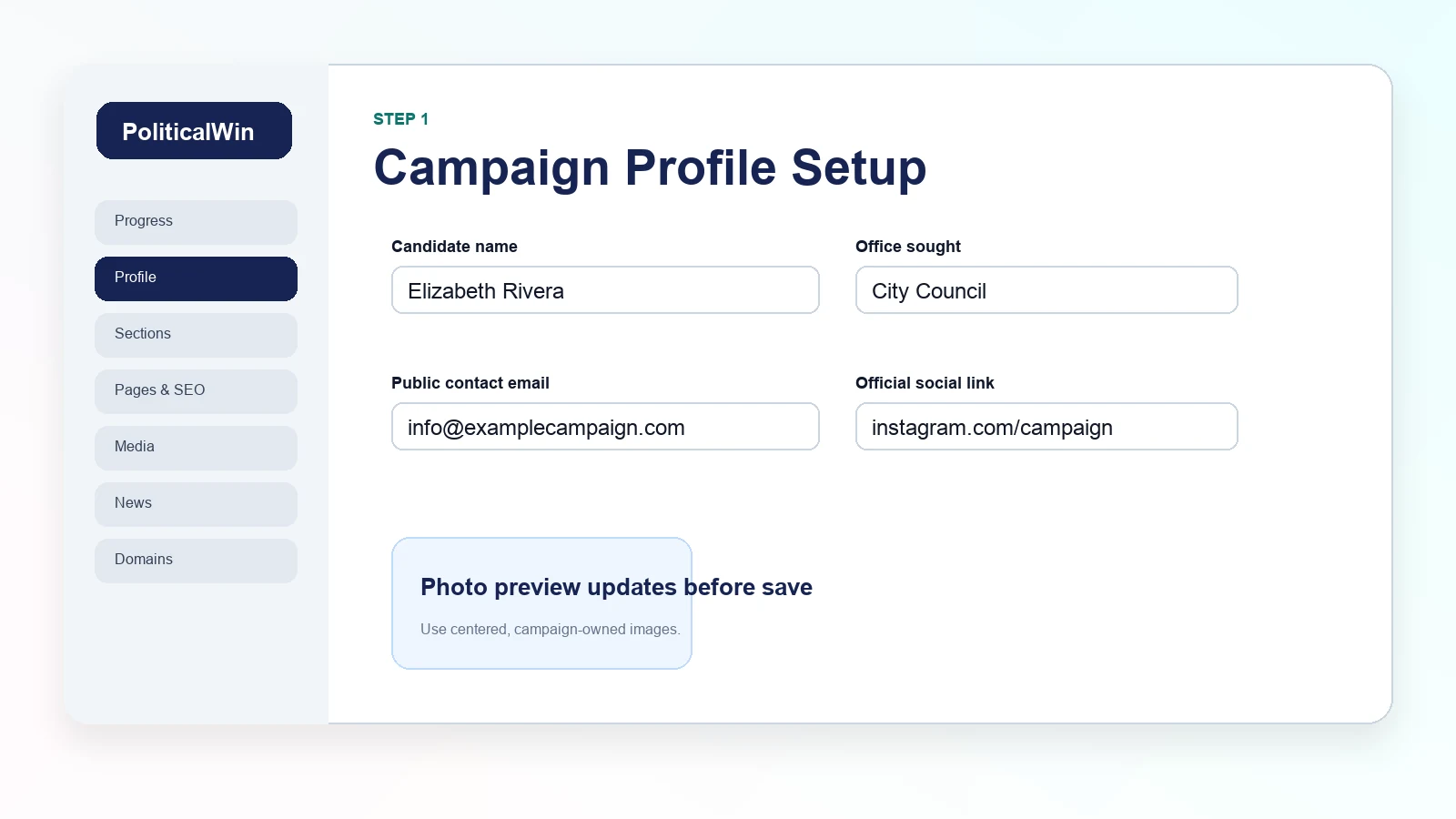
The campaign profile is the foundation of the site. Before a campaign thinks about colors, slogans, or long articles, it should make sure the basic identity is correct: candidate name, office sought, location, campaign email, public contact details, and the short summary that tells visitors why the campaign exists. These are the facts that appear in templates, page titles, search previews, forms, and public calls to action.
A strong profile does not need to be crowded. The best first pass is plain and complete. Spell the candidate name the same way everywhere. Use the office title voters understand. Keep the summary short enough to work on a homepage card, a mobile view, and a search preview. A campaign can always add more depth in the biography page, but the profile should remain crisp.
Keep private notifications separate from public contact information
Campaign teams often confuse the email address that receives form notifications with the email address they want voters to see. Those are not always the same thing. A private notification inbox should go to the person who will actually follow up. A public contact email should be the address the campaign is comfortable publishing on a website.
PoliticalWin separates these areas so campaigns can route volunteer, contact, signup, yard sign, and RSVP submissions without exposing every internal inbox. That helps a small team stay organized while keeping the public website clean.
- Use a monitored inbox for form notifications.
- Use public contact details only when the campaign wants voters to see them.
- Add social links only when they are official campaign or candidate profiles.
- Review phone numbers and addresses before publishing.
Choose photos that support trust
Campaign photos do more than decorate a page. They help visitors decide whether the campaign is active, prepared, and connected to real people. The profile area is where campaigns can add the candidate photo, hero image, or logo that appears across templates.
Use images with enough space around the subject so the template can crop naturally on desktop and mobile. Avoid screenshots, flyers with tiny text, heavily filtered images, or photos where the candidate is too far away. A simple, clear candidate photo usually works better than a busy graphic.
Check the public preview before moving on
After the profile fields are saved, open the public preview on a phone and on a desktop. Look for the basics: the name is not clipped, the office reads correctly, the candidate photo is not awkwardly cropped, and the contact links go where they should. This quick review catches the small mistakes that can make an otherwise polished campaign site feel unfinished.
The campaign profile is not the whole website, but it is the part that many other pages depend on. Getting it right early makes the rest of the dashboard easier to use.